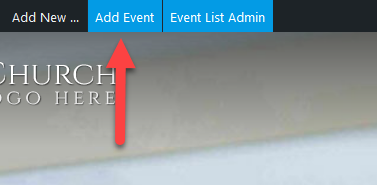
If you are looking at your calendar or event list click add event at the top to add a new event.
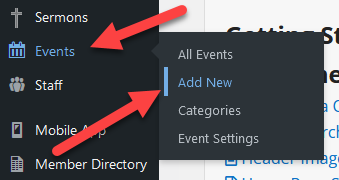
If you are in the admin area go to events > add new to add a new event.
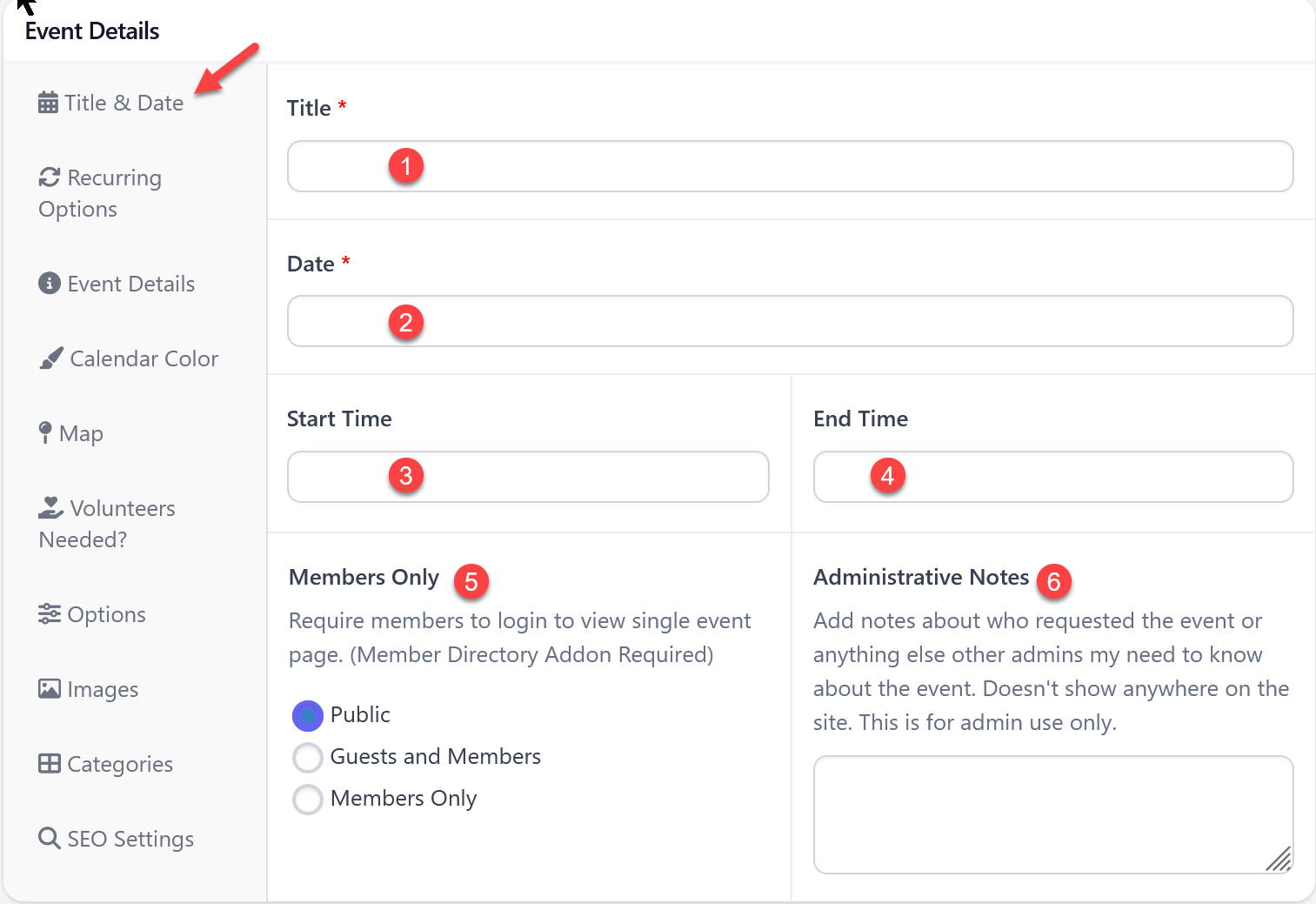
Title & Date Tab
- Add a title for the event
- Add the date (for recurring events this is the start date)
- Optionally add a start time.
- Optionally add an end time.
- If you have the Church Directory add-on you can choose who can view the event.
- Optionally add an administrative note.
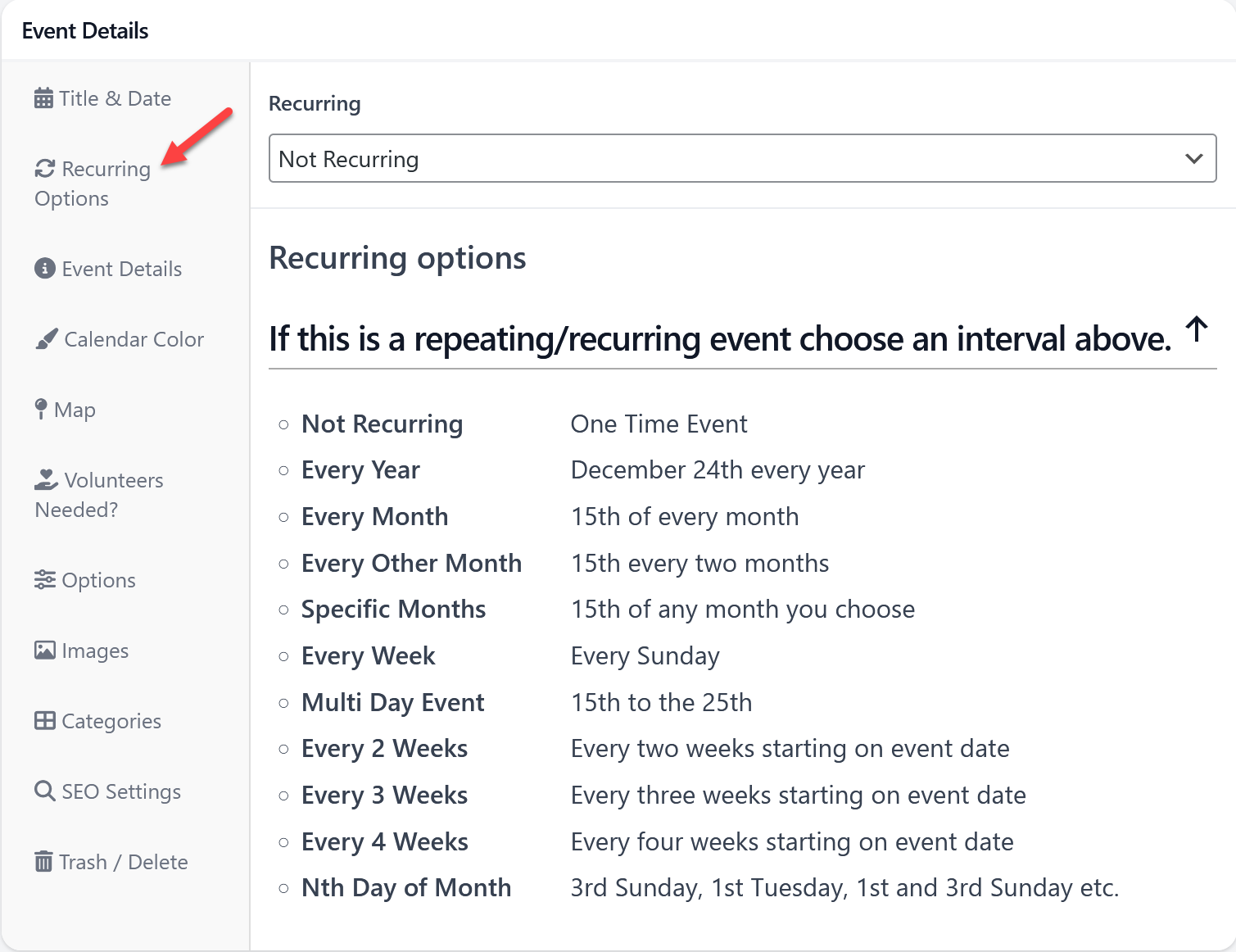
Recurring Options Tab
Here you can choose options like weekly, monthly, yearly etc. so you can add the event one time and have it automatically show on all the correct dates on the calendar.
There is an example of each option there to show how each one works.
After you select an option you will see options to add an end date as well as options to add skip dates in case there's a particular date the event doesn't happen on.
Event Details Tab
Add all the information you want people to know about the event here. You can also add images, video etc by clicking the add media button.
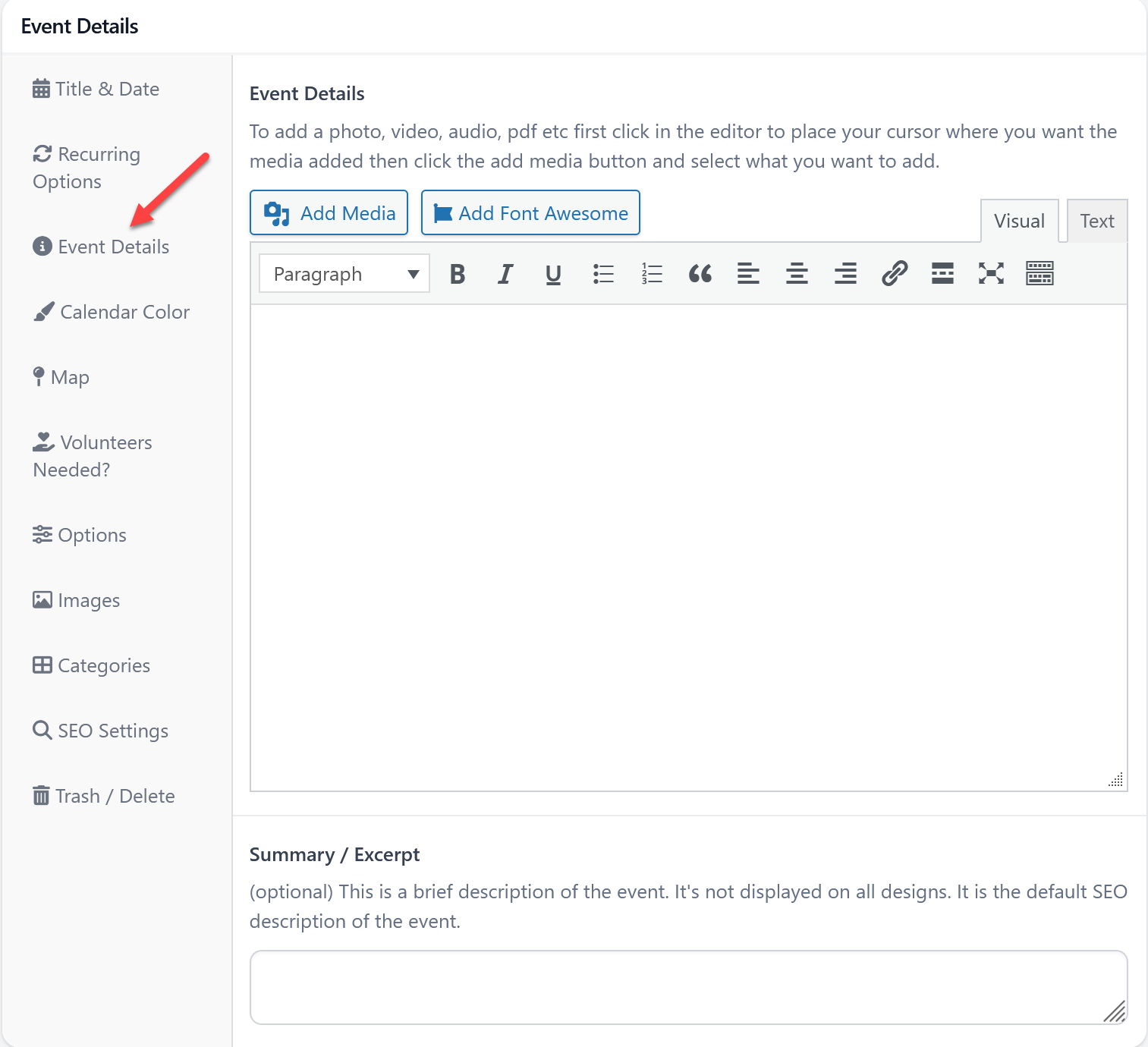
In many cases you can publish or save the event at this point. Everything below is optional.
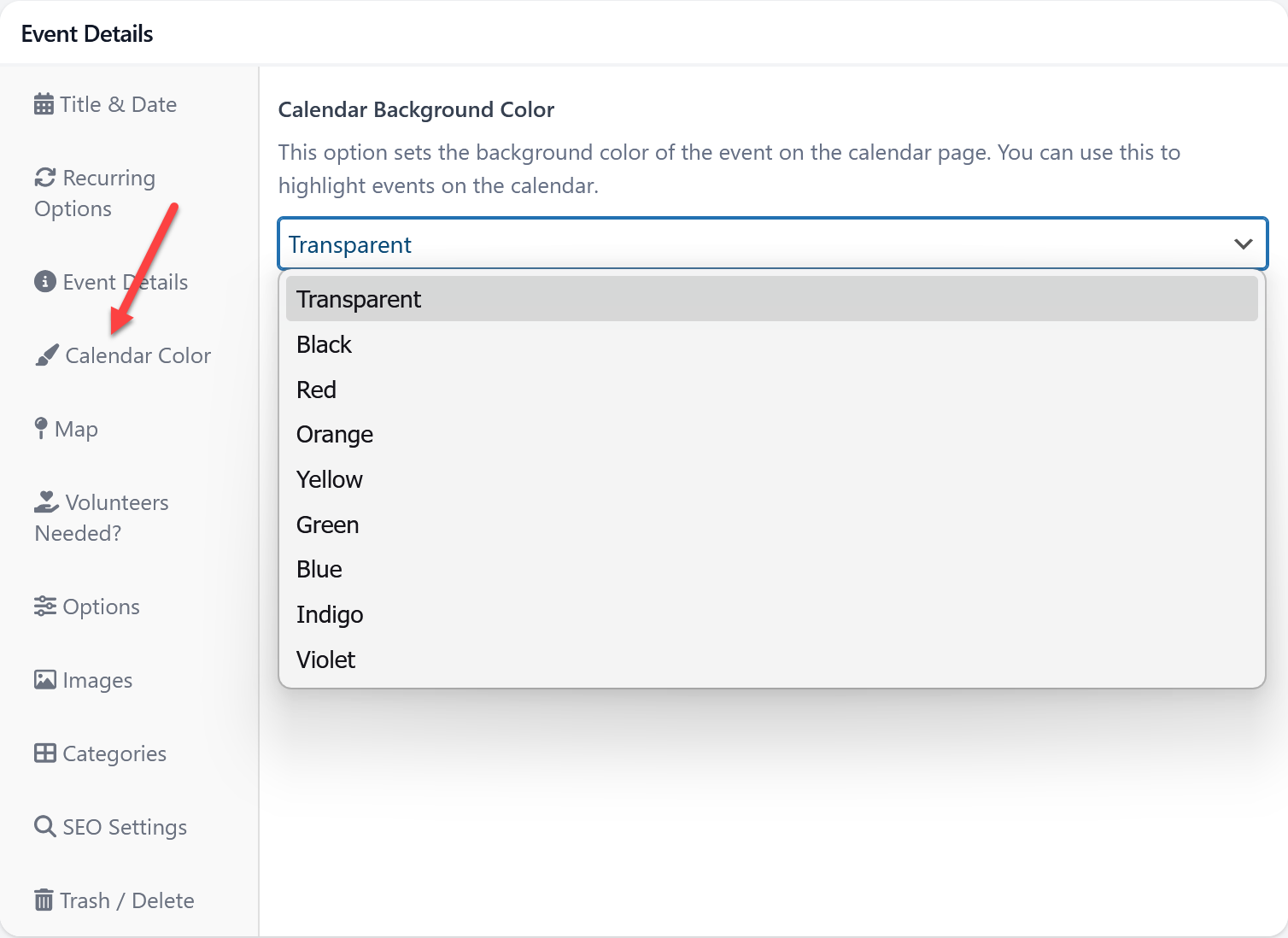
Calendar Colors Tab
Here you have the option to set a highlight color for this event on the calendar. Some also use this to color code events so for example all youth events are the same color on the calendar.
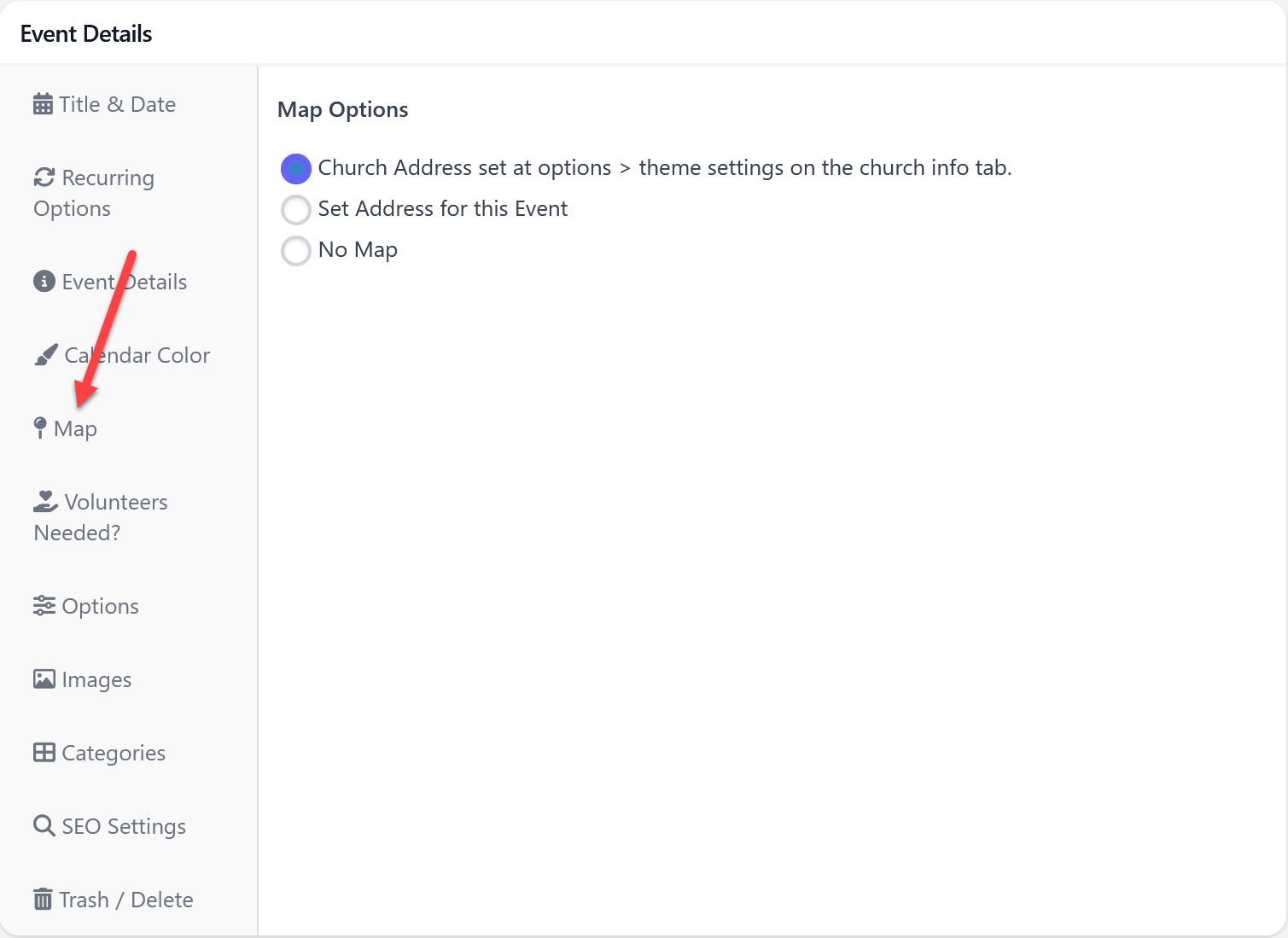
Map Tab
- By default, the event will show a map to the church address set at options > theme settings on the church info tab.
- If you'd like to use a different address choose set address for this event. Then enter the address for the event.
- If you don't want/need a map on this event choose no map.
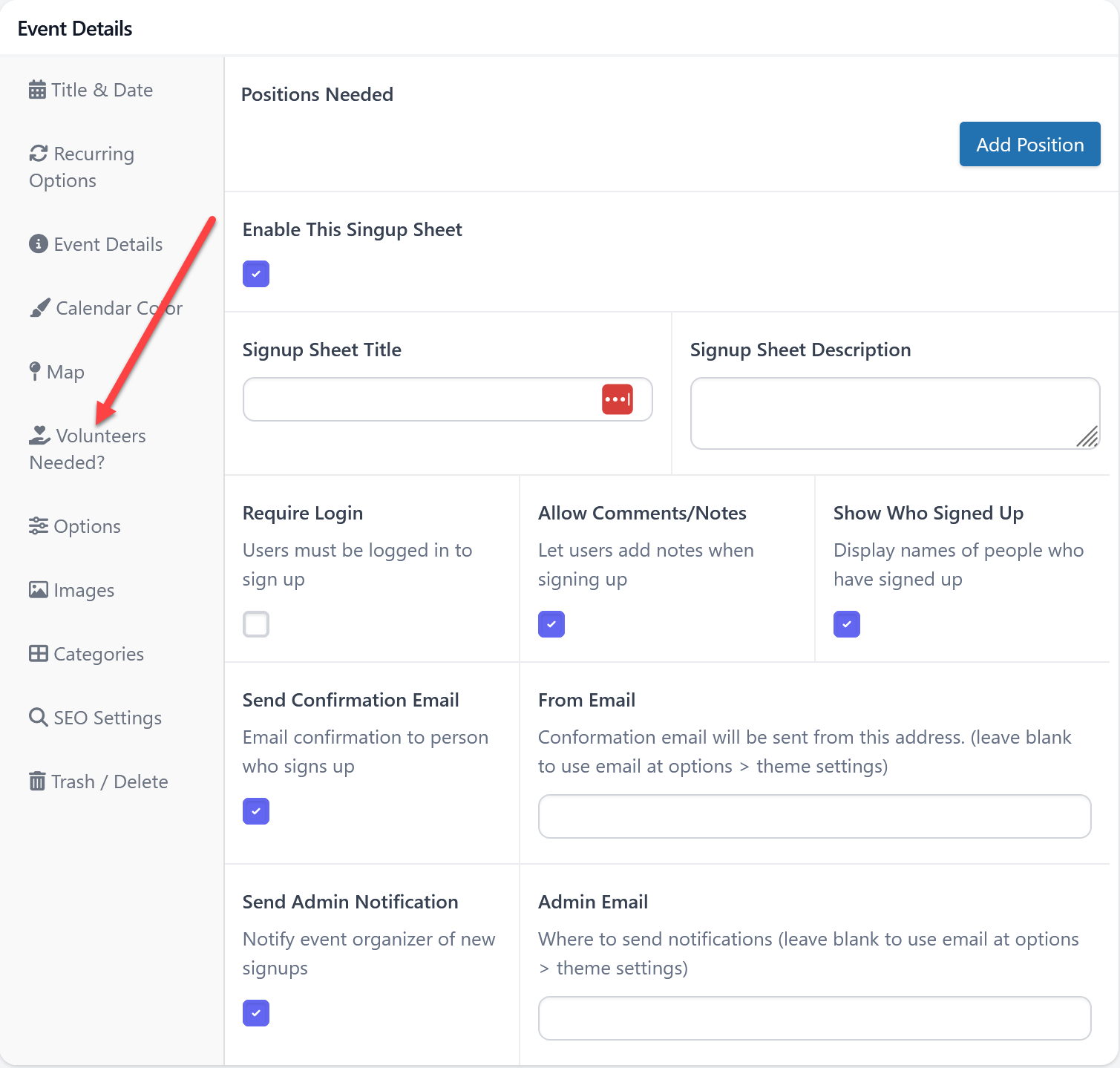
Volunteers Needed? Tab
If you need volunteers for this event you can add the positions needed here.
For more information on this see: Volunteer Signup Sheets
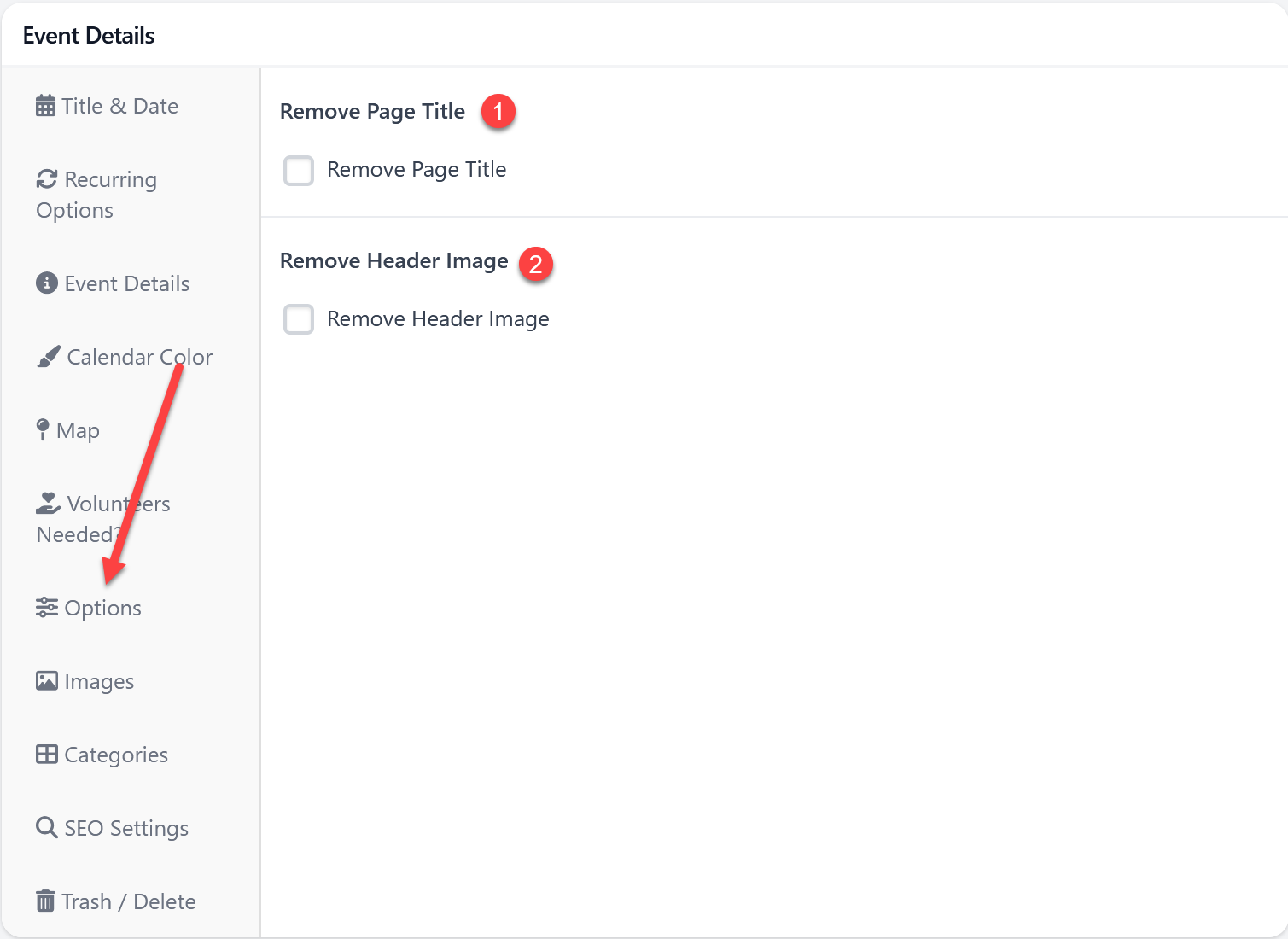
Options Tab
If for some reason you want to remove the page title (1) or the header images (2) you have the option to do so here.
Images Tab
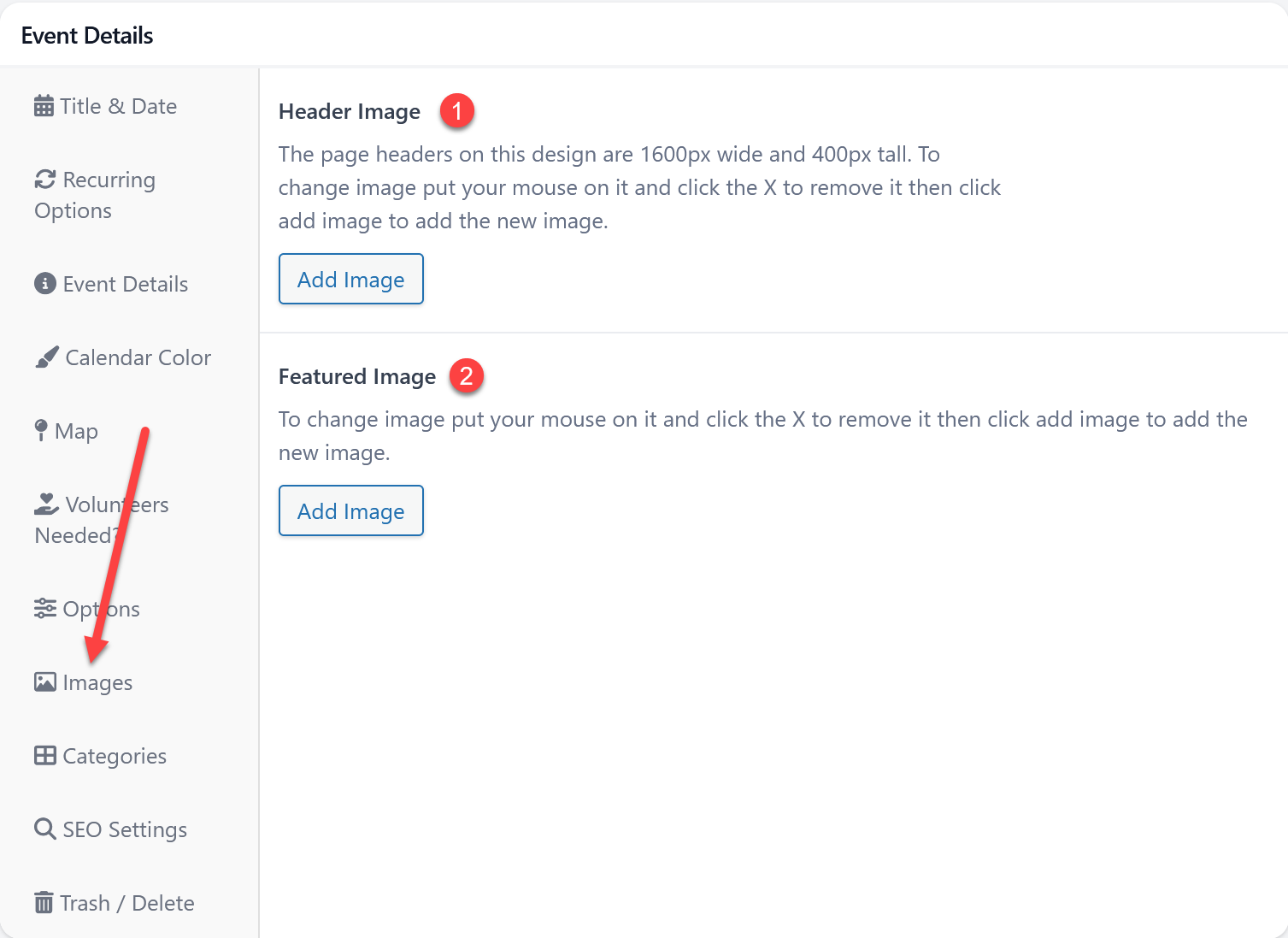
- Header image. By default, the event will use the default event header image set at events > event settings. But you can set a different header image for this event here.
- By default events show a small calendar showing the event date. If you'd like you can add a featured image that will show in place of that calendar image. This is also the image that will show if the event is shared on social media.
Categories Tab
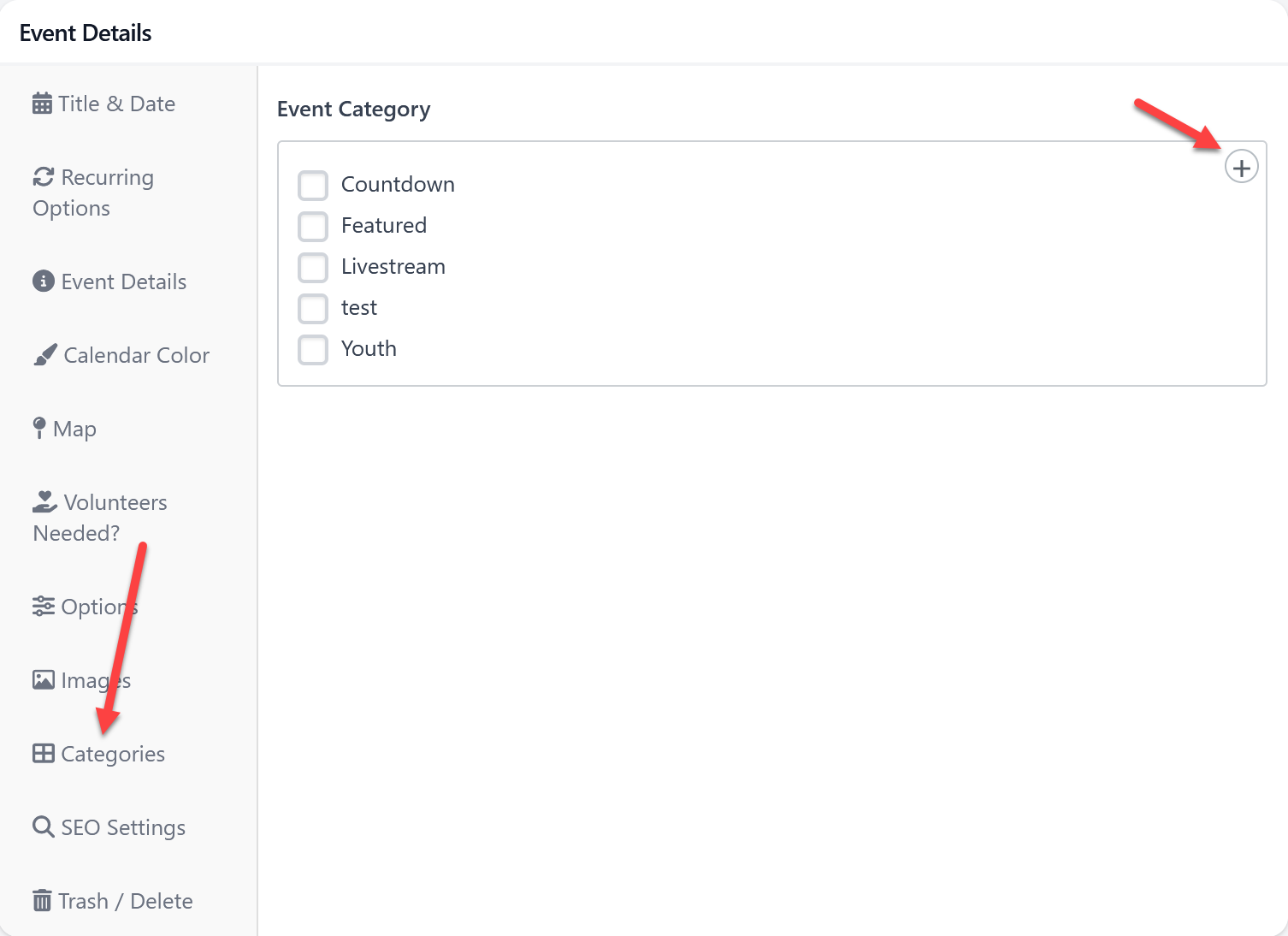
Here you can add the event to a category. You can also click the + to create a new category.
Use event categories to group like events together. You can then add things like event countdowns or event lists to any page and have it only show events in the category you choose. So maybe you have a youth page. You can add an event list to the youth page showing all events in the youth category.
SEO Settings Tab
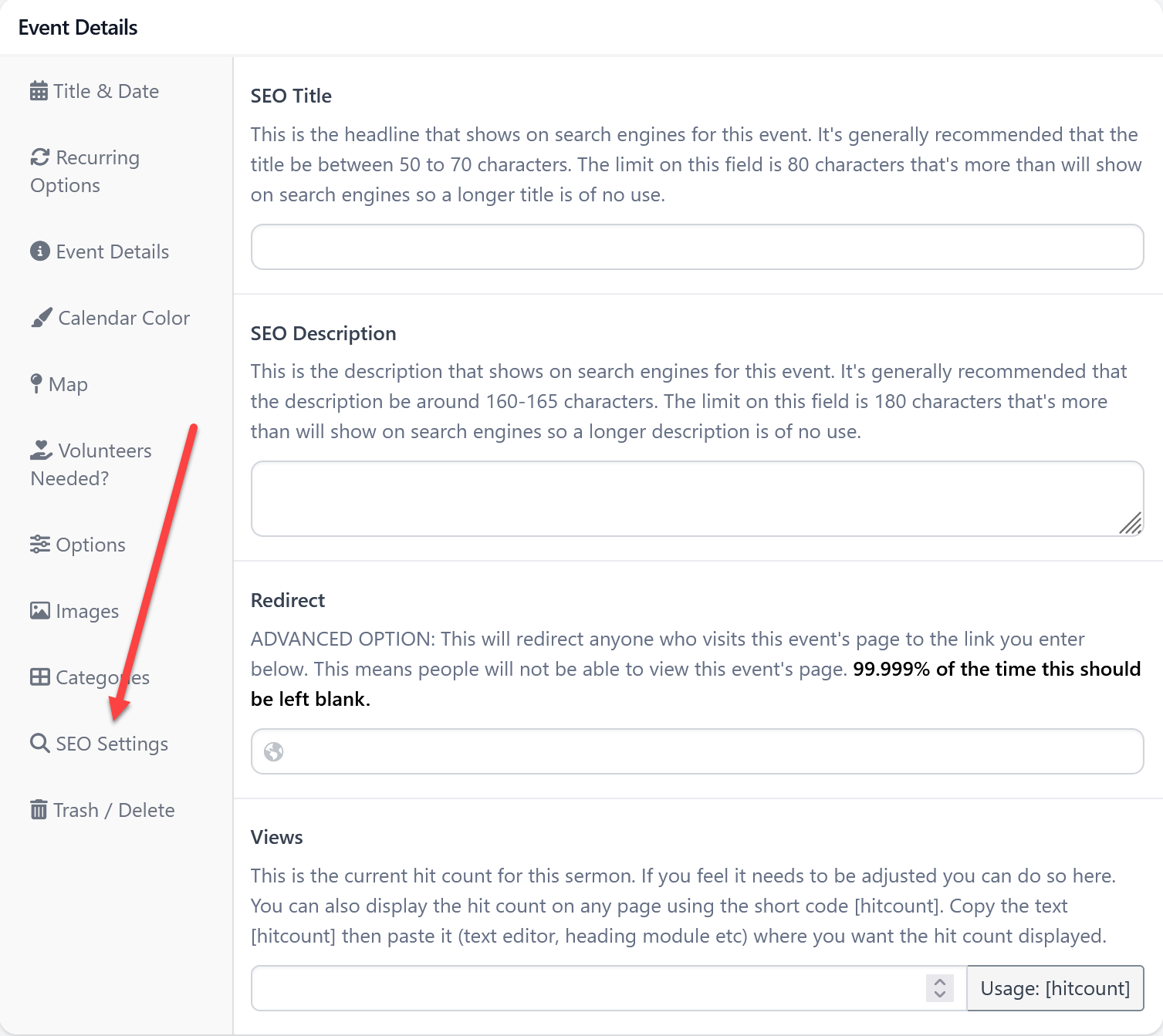
Here you will find all the SEO settings for the event. By default, the event title and description will be used. So you only need to fill this out if you want something different.
For more information: SEO (Search Engine Optimization) Settings
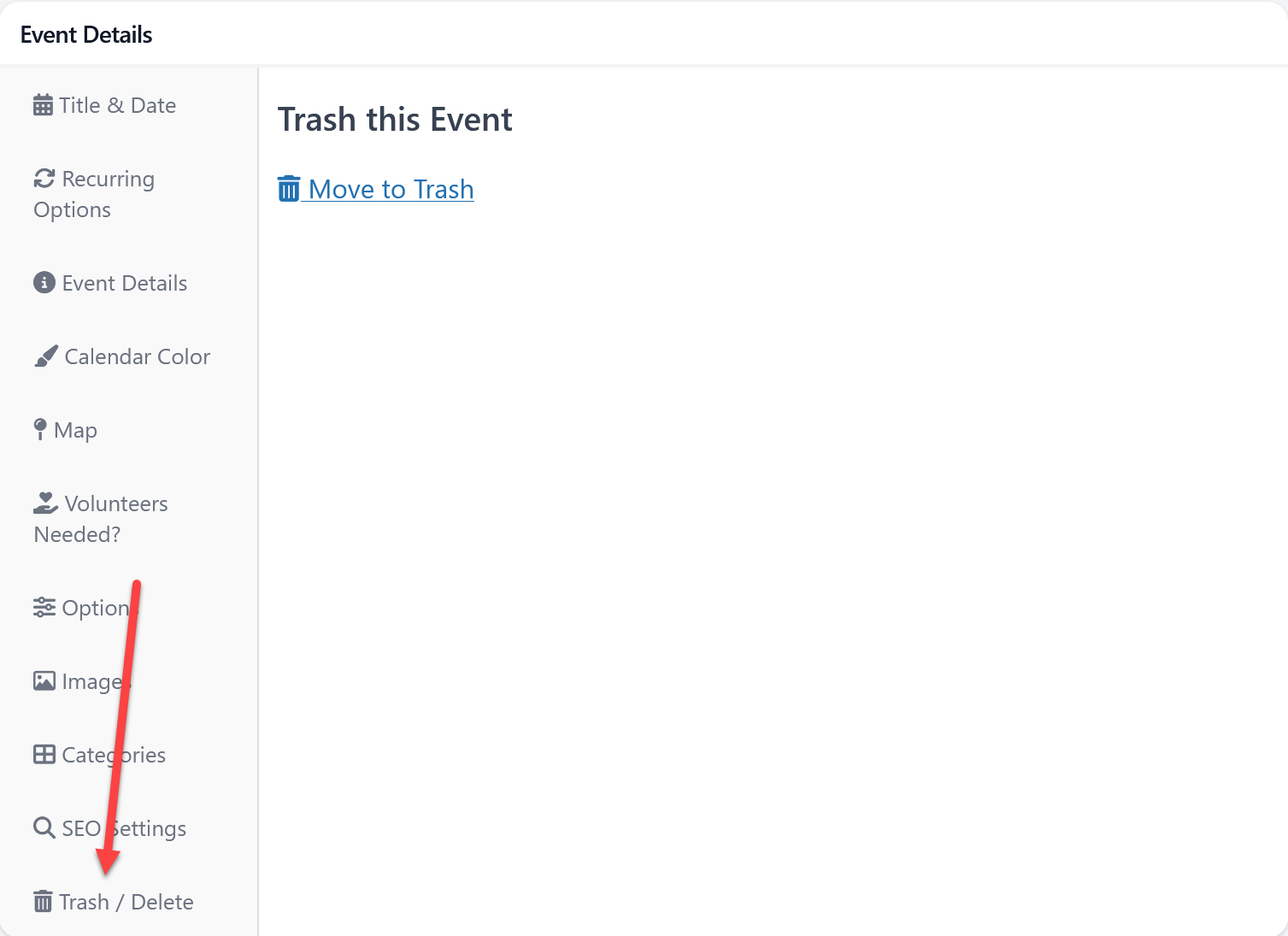
Trash / Delete Tab
Here you'll see a link to move the event to trash. Use this to delete the event.

 Add your logo in the admin